

Hire the tester that reads code, clicks buttons, and never sleeps.
The QA Agent is your always-on test engineer. It opens your app in a real browser, clicks around like a user, and pushes fixes back to the agents – all without you writing a single test script.
Behaves like a real user
Navigates your app in a real browser, filling forms, clicking buttons, and following links the way a real user would.
Finds & fixes issues
Logs broken flows, passes them back to build agents, and keeps re-testing until the issue is actually fixed.
Runs on every build
Attach QA runs to your build flow so every new app version is actively tested before you share it with users.
Why this QA Agent is different
Most “AI builders” stop at it compiled. LaunchPulse keeps going:Full user journeys
Tests end-to-end flows like sign-up, login, checkout, and dashboards – not just individual screens.
Self-healing loop
Every failure goes back to the agents, who attempt a fix. QA then re-runs the same flow until it passes or is marked as blocked.
Zero test scripting
No need to write Cypress/Playwright tests. Scenarios are generated from your app and product brief automatically.
Watch it work
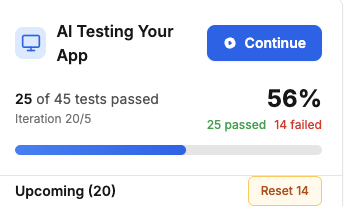
See live QA activity in the sidebar – which page it’s on, what it’s trying, and what it found – in human-readable notes.
How a QA run works
Start a QA session
Trigger a QA run from your project. The QA Agent launches a real browser pointed at the latest build of your app.
Walk through key flows
It executes realistic flows such as user login, onboarding, checkout, project creation, shopping cart, or order tracking – just like a user.
Capture anything that breaks
For each failed step it records:
- The action it tried (e.g. “submit login form”)
- What actually happened (error, wrong page, broken layout)
- A severity level (critical, high, or medium)
Send issues back to agents
Failing cases are sent back to the build agents, who attempt to fix the code, schema, or config that caused the issue.
What you see in the QA panel
Run summary
See total tests, passes, and failures for the current run at a glance. Great for a quick “are we safe to share this?” check.
Per-test details
Each test case shows the flow name (e.g. “User login flow”) plus its current status, last attempt time, and a short explanation.
Control actions
For failing cases, click
Resetto re-run just those tests once the agents have applied new fixes.
Severity levels
Critical
Blocks users or core revenue flows – login, checkout, core dashboards. Fix these before you demo or go live.
High
Serious UX or correctness issues that don’t fully block users but will create frustration or confusion.
Medium
Minor issues: rough edges, layout glitches, or non-essential flows. Good to fix, but they don’t stop you shipping.
Sidebar activity
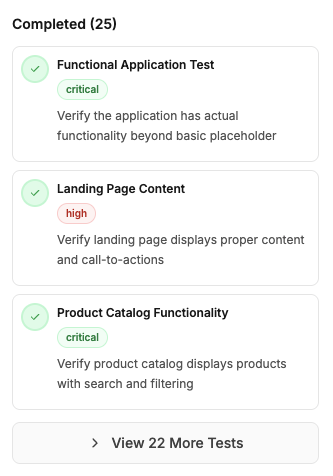
While a run is in progress, the sidebar shows QA’s to-do list:-
Completed tests – flows the agent has already finished running
-
Upcoming tests – flows that are queued next
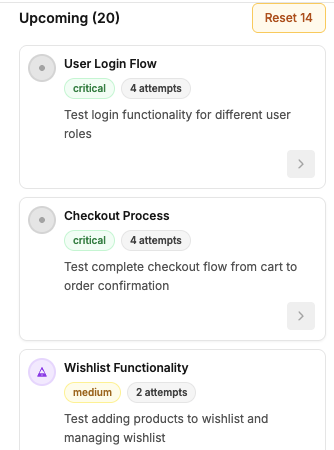
- Current action – a short note like “filling checkout form” or “verifying password reset email”
Examples of flows QA covers
Some typical scenarios the QA Agent generates and maintains for you:Account & auth
- User login & logout
- Sign-up and onboarding
- Password reset and account recovery
Commerce flows
- Add to cart / update quantities
- Checkout and payment steps
- Order tracking and status timeline
Productivity flows
- Creating and editing projects or tasks
- Assigning items to users or teams
- Filtering and searching data views
Custom flows
Flows unique to your app, like supplier registration, tenant onboarding, or internal approval workflows based on your brief.
How to get the most out of QA Agent
- Run it after major changes – especially when you change auth, payments, or navigation.
- Scan severity first – clear all critical items before you demo or share the app with customers.
- Use attempts as a signal – if something has many failed attempts, add a quick human review to unblock the agents.
- Keep it in the loop – let QA run on every big iteration so your app gets safer over time, not riskier.